
- Login to your site, Open the form you would like to modify.
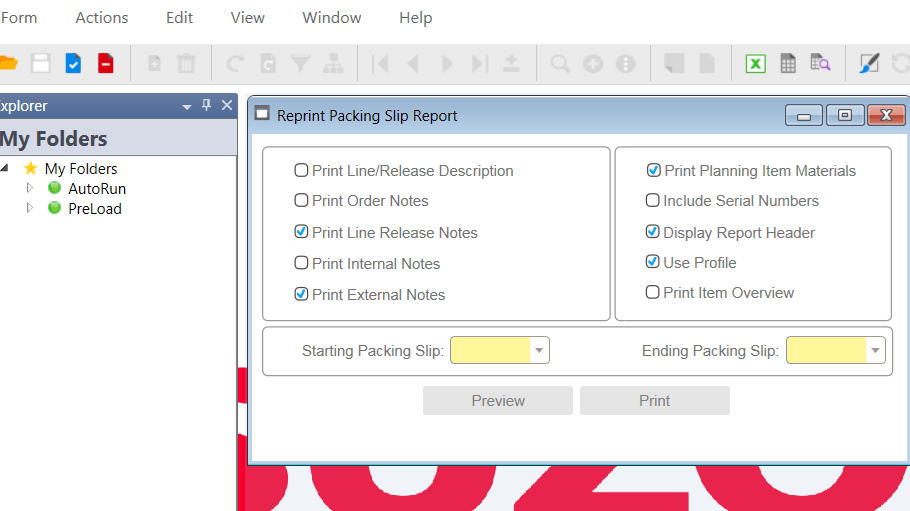
- Ctrl+E, you will see the Identify your Editing Scope window. Choose a scope, in my case, I want my modification affect everyone. So I chose “Site Default”
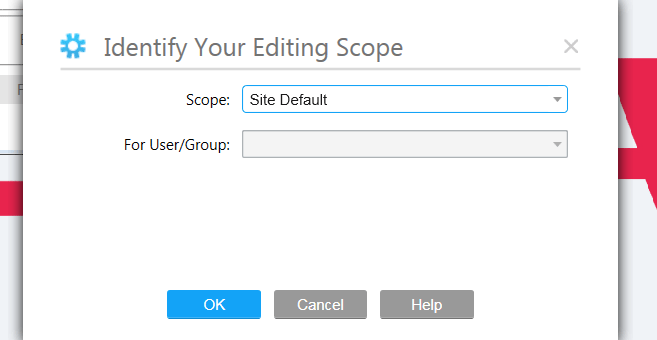
If there is a warning about the scope, you can CTRL+U just make sure it’s the correct scope.
Click on the check box field you want to modify
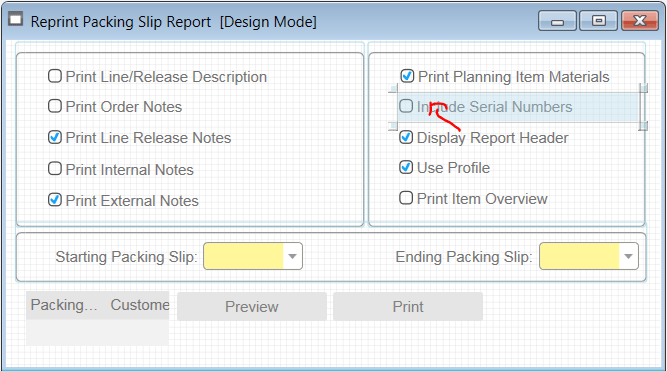
Go to Property window, data source, Binding, click the ellipsis.
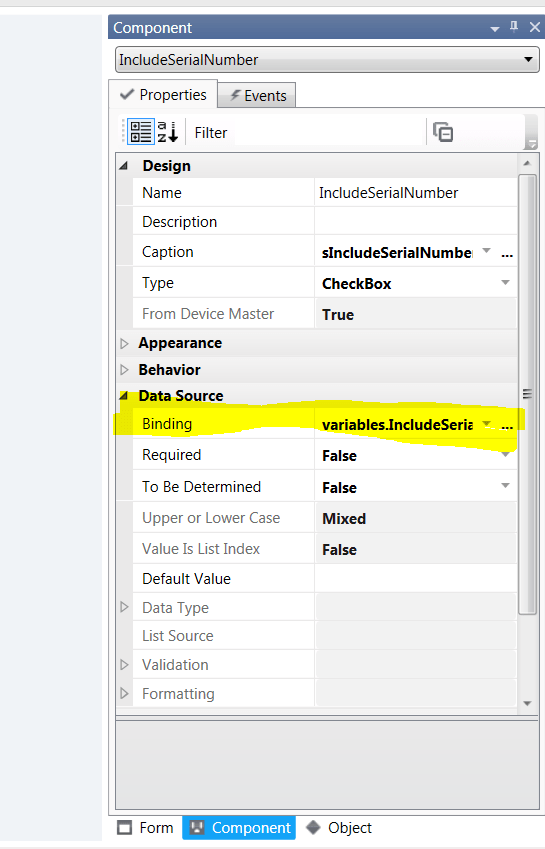
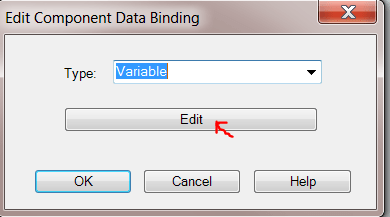
Edit Component Data Binding window will pop out, click Edit
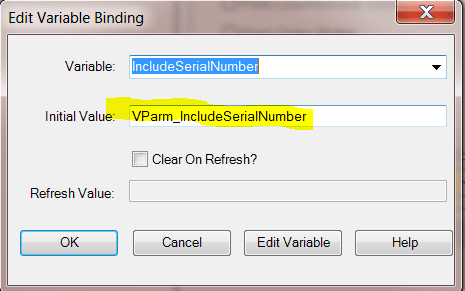
The variable Binding show as below, initial value is VParm_IncludeSerialNumber, which means initial value is determined by user to check it or not
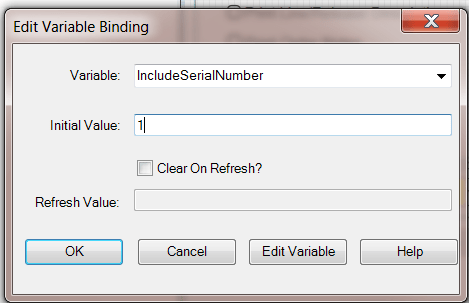
Set the initial value as 1, which means true, so the check box is checked by default. Click OK, then OK again
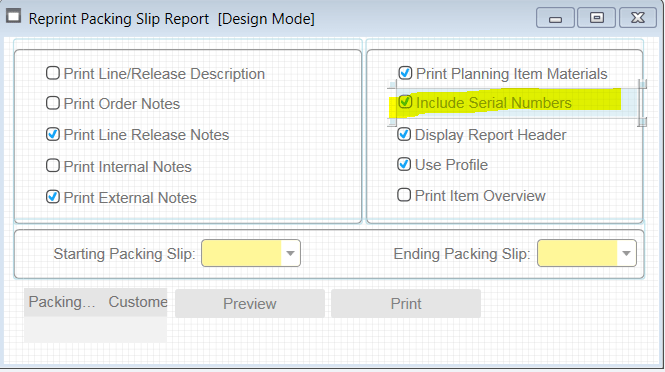
Notice now your edit form is displayed with serial number checked.
Save your modification, exit Design mode. Close your form, and Ctrl+U, you can open the Form again, verified that this check box is indeed checked as default.
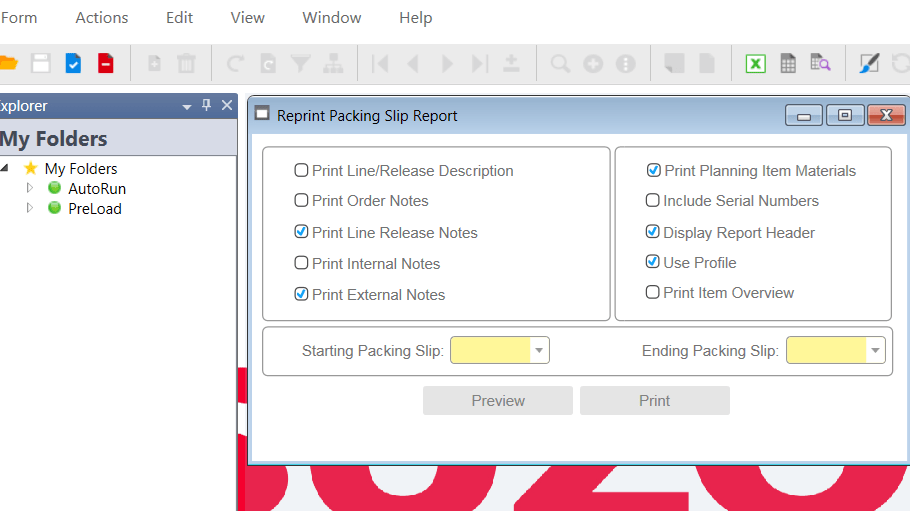
This method can be used in any check box property.


 Vision Binary
Leave a reply to Lim Cancel reply